Scale to Grams
How to Identify Fonts from a Photo: AI Font Finder Guide
Quick Answer
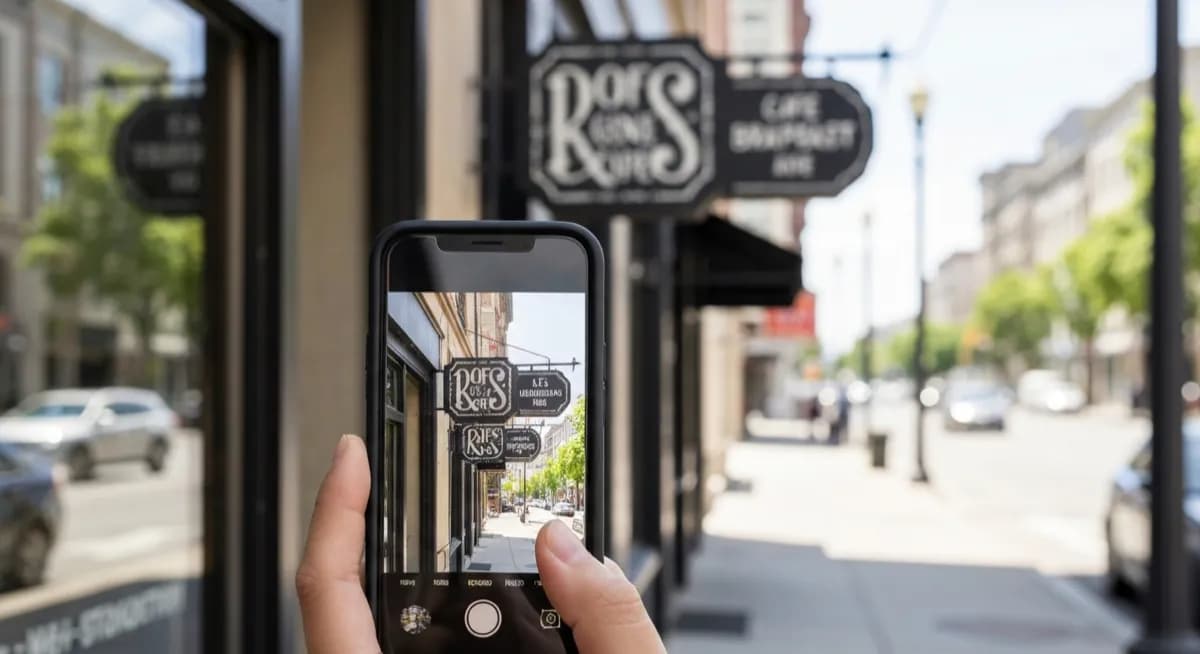
Photograph the text straight on with good contrast, including 4-5 different characters (mix of uppercase, lowercase, and numerals). Upload to an AI font identifier like WhatTheFont or Scale to Grams to get an exact match or close alternatives in seconds.
Try the Font IdentifierFonts in databases
130,000+
top identifier tools
Best photo type
Straight-on
high contrast, 4-5 chars
Free font sources
Google Fonts (1,500+)
Font Squirrel, DaFont
Top Font Identification Tools
Each tool has its strengths. WhatTheFont has the largest database, Fontspring Matcherator is best for similar-font recommendations.
| Tool | Database size | Best for |
|---|---|---|
| WhatTheFont (MyFonts) | 130,000+ fonts | Most accurate identification |
| Fontspring Matcherator | 60,000+ fonts | Finding similar alternatives |
| Scale to Grams Font ID | 50,000+ fonts | Free browser-based |
| Adobe Fonts (Creative Cloud) | 20,000+ fonts | Adobe subscribers |
| Font Squirrel Matcherator | 5,000+ free fonts | Free font matches only |
| WhatFont (Chrome extension) | Live web fonts | Reading website fonts |
How AI Font Identification Works
The AI analyzes letter proportions, x-height, serif style, stroke contrast, character width, spacing, and distinctive shapes (the tail on Q, the curve of g). These features form a visual fingerprint matched against thousands of known fonts.
Tips for Better Font Photos
Straight-on, no perspective tilt. 4-5+ different characters in frame, mix of upper, lower, and numerals. Sharp focus, high contrast (black on white is ideal). Skip reflective surfaces and dim light. For screen text, take a screenshot, not a photo of the screen.
Where to Get Identified Fonts
Free: Google Fonts (1,500+ families, all free for web and personal use), Font Squirrel (curated commercial-licensed free fonts), DaFont (large library, licensing varies). Commercial: Adobe Fonts (included with Creative Cloud), MyFonts, FontShop. Commercial fonts run $20-500 per family.
When AI Cannot Find an Exact Match
Logos often use custom or modified typefaces that no database matches exactly. The AI suggests the closest commercial font, which is usually the base the designer started from. Handwriting and script fonts vary more between examples and are harder to identify.
Frequently Asked Questions
What is the best app to identify a font from a photo?+
WhatTheFont (MyFonts) has the largest database. Fontspring Matcherator is best for similar alternatives. Scale to Grams Font Identifier works free in any browser without an app.
Can AI identify a logo font?+
Often yes for the base typeface. But many logos use heavily modified or fully custom letterforms, so the AI returns the closest commercial font rather than an exact match.
How can I find the font on a website?+
Use the WhatFont Chrome extension or browser developer tools (right-click > Inspect > look for font-family in CSS). This reads the live font directly, more accurate than a photo.
Are there free alternatives to commercial fonts?+
Often yes. Google Fonts has free alternatives for most popular commercial fonts. Search "free alternative to [font name]" or use Font Squirrel's Matcherator which prioritizes free results.
How accurate is font identification by photo?+
For clear photos of standard typefaces, modern AI hits 85-95% accuracy on the exact font and 95%+ on the font family. Stylized logos and rare fonts drop to 60-75%.
Why does the AI suggest multiple similar fonts?+
Many fonts are visually nearly identical. When the AI is not 100% certain, it returns the top 3-5 candidates so you can compare side by side and pick the closest match.
Try These Tools
Put what you learned into practice with our free AI tools: